 PREVIOUS POST
 All Articles
  Cyber Security
  Digital Marketing
  E-commerce
  Mobile Application
  Technology
  UI/UX Design
  WordPress
 eCommerce Website Development Trends 2021
 August 29, 2021
 Web Development
October 21, 2026
 14 min read
 By Lions T.
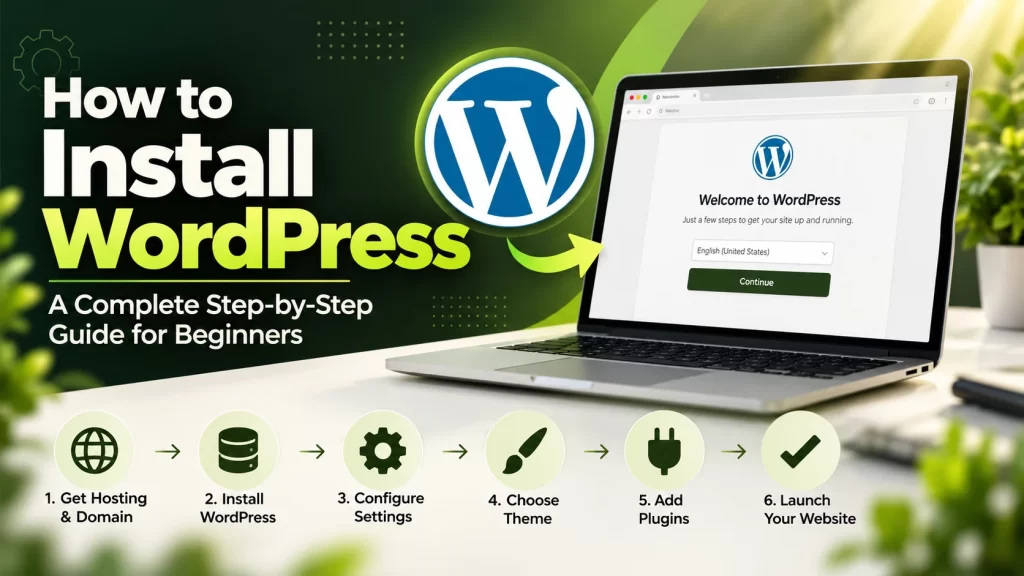
WordPress is one of the most popular content management systems (CMS) for building websites, blogs, business websites, portfolios, and online stores. Its flexibility, extensive plugin ecosystem, and customisation options make it a preferred choice for beginners, bloggers, entrepreneurs, and businesses.
If you want to create your own website, learning how to install WordPress is the first step. The good news is that you do not need advanced technical knowledge to get started. With the right hosting provider, a domain name, and a few simple steps, you can install WordPress and start building your website.
In this guide, we will explain how to install WordPress using your hosting control panel, install it manually, configure essential settings, and troubleshoot common installation problems.
Before you begin the WordPress installation process, make sure you have the following:
Many hosting providers offer one-click WordPress installation, making the process much easier for beginners.
The easiest way to install WordPress is through your hosting provider’s automatic installer. Many hosting companies provide tools such as Softaculous, WordPress Toolkit, or their own WordPress installation wizard.
The exact steps may vary depending on your hosting provider, but the general process is similar.
Visit your hosting provider’s website and log in to your account. Open the hosting control panel associated with your domain.
Depending on your hosting provider, you may see options such as:
Look for the WordPress installation option.
Open the application installer and select WordPress. Click the Install button to begin configuring your website.
Some hosting providers allow you to choose the WordPress version, installation directory, and other settings.
Whenever possible, use a currently supported WordPress version recommended by your hosting provider.
Select the domain on which you want to install WordPress.
For example:
https://example.com
If you want WordPress to appear directly on your main domain, leave the installation directory empty. If you enter a directory such as blog, WordPress may be installed at example.com/blog instead.
Make sure you select the correct domain and protocol, preferably HTTPS when your SSL certificate is active.
Enter your website details and administrator credentials.
You will typically need to provide:
Avoid common usernames such as admin where possible. Use a strong, unique password and a valid email address so you can receive important website notifications.
Depending on the installer, you may be asked to configure your database, language, automatic updates, or plugin options.
If your hosting provider manages the database automatically, you usually do not need to create one manually.
Enable appropriate security and update options, but avoid installing unnecessary plugins that could affect website performance.
Review your settings and click Install.
Wait for the installation to finish. Your hosting provider should display a confirmation message along with links to your website and WordPress dashboard.
Your website should now be accessible at your selected domain.
Open the WordPress login page:
https://example.com/wp-admin/
Enter the administrator username and password you created earlier.
Once logged in, you can manage pages, posts, themes, plugins, menus, and other website settings from the WordPress dashboard.
Congratulations! You have successfully installed WordPress using your hosting provider’s automatic installer.
If your hosting provider does not offer automatic WordPress installation, you can install WordPress manually. This method requires access to your hosting control panel, a database management tool, and an FTP client or file manager.
Follow these steps carefully.
Visit the official WordPress website and download the latest stable WordPress package.
Official download page: https://wordpress.org/download/
The downloaded file is generally provided as a ZIP archive. Extract it on your computer if you need to upload the individual files.
Always download WordPress from the official website rather than an unfamiliar third-party source.
Log in to your hosting control panel and open File Manager, or connect to your server using an FTP client.
Navigate to your website’s document root. On many cPanel hosting accounts, this directory is called public_html, although the correct directory depends on your hosting configuration.
Upload the WordPress files and folders into the document root.
If you want WordPress to load directly from example.com, ensure that index.php and the other WordPress files are in the correct root directory rather than inside an unintended nested folder.
WordPress needs a database to store website content, user information, settings, and other data.
In your hosting control panel, open the database management section and:
Keep your database name, username, password, and hostname available for the next step.
Use a strong database password and never publish your database credentials.
Open your domain in a web browser.
If the WordPress files are uploaded correctly and no existing site is taking precedence, WordPress should display its installation setup screen.
Choose your preferred language and proceed to the database configuration screen.
If the installer does not appear, check that the files are in the correct document root and that your domain points to the intended hosting account.
Enter the database information you created earlier:
The database host is often localhost, but some hosting providers use a different hostname. Always use the value provided by your host.
You can keep the default table prefix, wp_, for a standard installation. A custom prefix can help distinguish tables between installations, but it is not a substitute for proper security.
Click Submit to allow WordPress to connect to the database.
If the database connection is successful, WordPress will allow you to continue with the installation.
Click the installation button and enter your website information, including the site title, administrator username, password, and email address.
Choose a strong password and avoid using the same credentials on other websites.
Complete the installation and wait for the confirmation message.
Visit:
https://example.com/wp-admin/
Enter your administrator credentials to access the WordPress dashboard.
You can now begin designing your website, publishing content, installing plugins, and configuring your website settings.
If your hosting provider uses cPanel, you may be able to install WordPress through an application installer or WordPress management tool.
Here is the general process:
/wp-admin/.The available tools depend on your hosting plan. If you cannot find an installer, contact your hosting provider or follow the manual installation method.
Installing WordPress is only the beginning. You should configure a few essential settings before launching your website.
From your WordPress dashboard, navigate to Settings and review the available options.
Update the following:
If you change permalink settings on an existing website, make sure the change does not break important URLs.
Make sure your SSL certificate is installed and working correctly.
Your website should use HTTPS rather than HTTP. Update the WordPress Address and Site Address settings if necessary, and ensure your hosting configuration redirects visitors to HTTPS.
Before making URL changes on an existing website, create a backup to reduce the risk of losing access.
A theme controls much of your website’s appearance and layout.
To install a theme:
Choose a theme that suits your website’s purpose, loads efficiently, works on mobile devices, and receives regular updates.
Plugins extend WordPress functionality without requiring you to build every feature from scratch.
Depending on your website, you may need plugins for:
Only install plugins that you actually need. Too many poorly maintained or overlapping plugins can create compatibility issues and increase maintenance work.
Most business websites should include the following pages:
If you run an online store, you may also need product, shipping, refund, and terms and conditions pages.
Create your pages through Pages → Add New in the WordPress dashboard.
Regular backups help you recover your website if something goes wrong during an update, a security incident, or a hosting migration.
Configure automatic backups and, where possible, keep a copy in a separate storage location. Test the restoration process periodically rather than assuming every backup will work.
Search engine optimisation helps search engines discover, understand, and potentially rank your website content.
To prepare your new WordPress website for SEO:
An SEO plugin can help you manage titles, descriptions, sitemaps, and other on-page SEO settings. However, installing a plugin alone does not guarantee search engine rankings.
Even when you follow the correct steps, you may encounter problems during installation. Here are some common issues and their possible solutions.
This error usually indicates that WordPress cannot connect to the database.
Possible solutions:
If the installation wizard does not appear, check that all WordPress files are uploaded to the correct directory.
Also verify that your domain points to the correct hosting account, PHP is supported and configured properly, and the server is not returning an error.
A blank page may result from a PHP error, incompatible plugin, theme issue, or resource limit.
Check your hosting error logs first. If necessary, enable WordPress debugging temporarily in a controlled environment and review the logs. Avoid displaying detailed errors publicly on a live website.
A 403 error can result from incorrect file permissions, security rules, or hosting restrictions.
Check the hosting error logs and file permissions, and review any security or access-control rules that may be blocking the request. Avoid changing permissions broadly without understanding your hosting environment.
If you cannot access /wp-admin/, verify the URL and administrator credentials. If you recently changed the site’s domain or HTTPS configuration, check the WordPress Address and Site Address settings.
If you have lost access, use your hosting provider’s supported password recovery or database recovery process.
Yes. WordPress is free, open-source software that you can download and install on a compatible hosting account.
However, running a website may involve additional costs, including:
You can start with a basic WordPress installation and add paid features as your website grows.
A standard one-click WordPress installation can often be completed in a few minutes, depending on the hosting provider and connection speed.
Manual installation may take longer because you need to upload files, create a database, configure the connection, and complete the installation wizard.
Designing your website, adding content, configuring security, and implementing SEO will require additional time.
Yes. Most hosting providers offer automatic WordPress installation tools that let you install WordPress without writing code. You can manage your website through the WordPress dashboard.
Yes. You can install WordPress on your domain after connecting the domain to a compatible hosting account. Make sure you select the correct domain and installation directory during setup.
The WordPress software is free. However, installing it on your own domain generally requires a hosting service, and registering a custom domain usually involves a fee.
WordPress.org provides the open-source WordPress software that you can download and install on compatible hosting. WordPress.com is a hosted service that provides different plans and website management options.
The best choice depends on your budget, technical requirements, and desired level of control.
No. cPanel is not required. You can install WordPress through another hosting control panel, your provider’s one-click installer, or a manual installation process.
Yes, but you must choose the installation location carefully. Installing WordPress over existing website files can overwrite or conflict with them. Back up the website first and consider using a staging environment.
Log in to your WordPress dashboard and open Dashboard → Updates. Review the available updates and create a backup before updating your site. Keep WordPress, themes, and plugins maintained, and test important functionality after updates.
Yes. WordPress can be used to build business websites, blogs, portfolios, membership sites, and e-commerce stores. Its flexibility makes it suitable for a wide range of projects when configured and maintained appropriately.
Learning how to install WordPress is an important first step toward building your own website. Whether you choose a one-click installer, cPanel, or manual installation, the process becomes straightforward when you follow the correct steps.
After installation, focus on configuring your website settings, enabling HTTPS, choosing a suitable theme, installing essential plugins, creating useful content, and implementing SEO best practices.
A properly configured WordPress website provides a flexible foundation for growing your online presence.
If you need professional help with WordPress installation, website design, custom development, performance optimisation, or ongoing maintenance, Lionstechnologies.com can help you build a website tailored to your business goals.
Start with a reliable WordPress installation today and take the next step toward establishing your online presence.

August 29, 2021
August 17, 2023

November 13, 2023

March 16, 2024
Let’s discuss your ideas and create something amazing together.
Our team is ready to bring your vision to life.
